Help for technicians
The technician app: WorkSlate Tech
Install WorkSlate Tech on your phone, sign in, work through your day from the Today tab, keep working without signal, and control when your location is shared.
On this page
Install the app
Search for WorkSlate Tech in the App Store on an iPhone, or in Google Play on Android, and install it.
Sign in
Open the app and sign in with the same email and password you use for WorkSlate on the web, then tap Sign in. If sign-in fails, the app tells you to ask the office to reset your password, or to sign in on the web app. There is no password reset inside the app itself.
Start your day on the Today tab
The app has five tabs along the bottom: Today, Work, Shift, Alerts and Me. Today shows the day's visits assigned to you. The visit at the top is marked NEXT, or shows its state once you are working on it, with one button for the next step: Start before you begin, Complete while you are working. Below it are your other visits for later in the day and the ones you have finished. Use Previous and Next to look at other days. The Work tab lists all your open work, both scheduled and not scheduled yet.
Tap a visit to open the job. The bar at the bottom of the job shows the steps that fit where the job is: On my way, Start job and Skip before you start; Pause and Complete while you work; Resume after a pause.
Start a job
Start job asks you to confirm first: it starts your clock and asks the office to tell the customer you are on the way, and it can't be undone. If you are starting well before or after the scheduled time, the app tells you how early or late you are and asks you to check it is the right job. Turn on Move this job to now if you want the office to see the real start time on the schedule.
Finish a visit
Tap Complete when the work is done. If checklist items are still unticked, the app reminds you first; you can go back to the checklist or complete anyway. Completing stops your clock and marks the visit done, and the job closes once every visit on it is done. Completing never sends an invoice: billing stays with the office.
Completing from the Today tab offers Open job as well, in case you still have photos or checklist items to add.
Keep working without signal
Lose signal and keep working. These actions are saved on your phone and sent when you are back in signal: Start (clocking in), Complete, On my way, Pause, Resume and Skip; adding and deleting job notes; customer notes; adding, ticking, noting and deleting checklist items; adding and editing work items; photos, photo captions, equipment photos and line item photos; and documents.
While anything is waiting, Today shows SAVED TO SEND with a count. Tap it, or See what is unsent on the Me tab, to open the list. Most items send themselves with no help from you. If the office changed a job while you were out of signal, an item can be refused; the list says so and suggests opening the job to see where it stands.
A schedule saved while you had no signal is marked OLDER SCHEDULE, and nothing can be started from it. Pull down on Today to refresh once you have signal.
Location sharing and when it is on
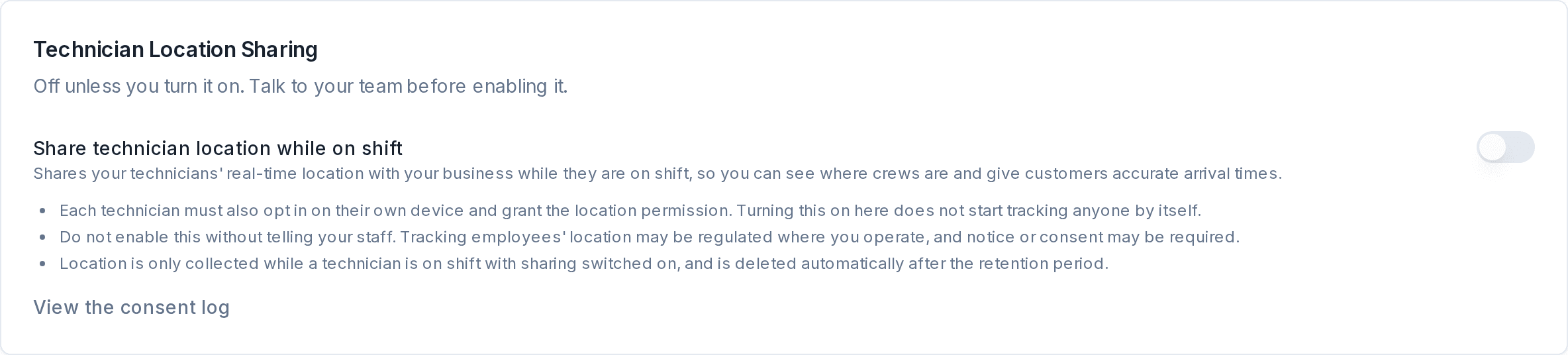
Location sharing is on the Shift tab, and you can use it only if your company has turned it on. To turn it on, tap Turn on sharing, read what sharing involves, and tap I agree, turn it on. Your phone then asks for permission to use your location. If sharing is off for your company, the app says so instead. Agreeing needs signal.
Your location is shared only while sharing is on, and it stays on until you turn it off with Turn off sharing or your company switches location sharing off. Your position updates as you travel between jobs; while you stay in one place, nothing is sent. What is collected, who sees it and how long it is kept are under What is collected? on the Shift tab.
Good to know
- The customer sees every photo you add to a job and its caption, and reads your job notes. Customer notes stay with your team.
- The Me tab shows the app's version under HOW THIS WORKS. Give it to the office when you report a problem.